Before you begin
- Use Google Chrome or Microsoft Edge, currently the only two supported browsers.
- Have your work email ready, the one your organization gave Protego.
- Open the EHR you normally use after you log in.
Setup at a glance
- 1Install
- 2Pin
- 3Open
- 4Sign in
- 5Refresh
Access is set up per email address. Personal or shared emails will not be authorized.
Install and pin
Install Protego Guardian
Open the listing in the Chrome Web Store, click Add to Chrome (red arrow), and confirm the browser prompt.
Open the Chrome Web Store listing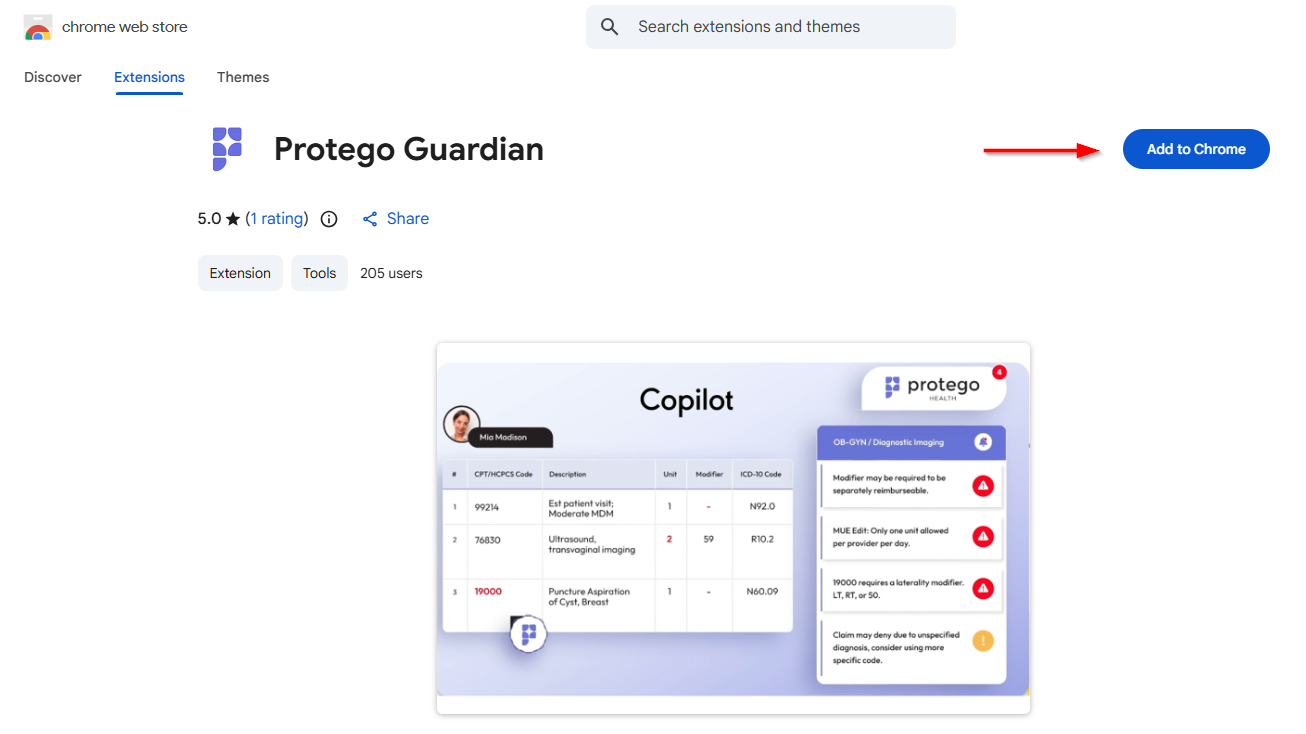
Pin Guardian to your toolbar
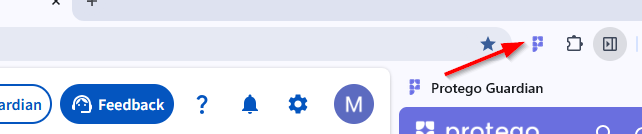
Click the puzzle piece button in the top right of Chrome, then click the pin next to Protego Guardian. The P icon stays visible so you never have to search for it.
Open the panel and sign in
Open the side panel
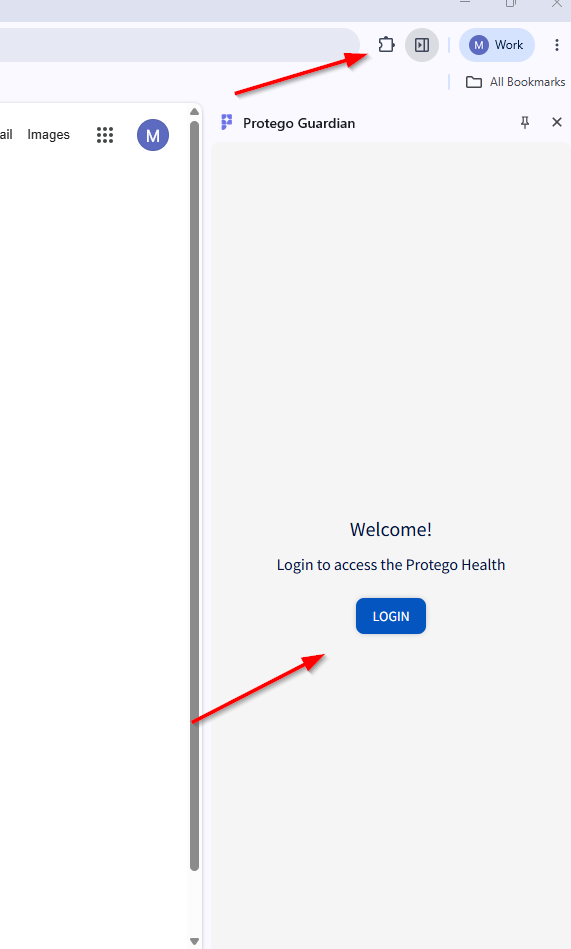
Open your EHR, then click the Guardian icon in the browser toolbar. The panel opens on the right side of the window. Click LOGIN.
You should see the Welcome screen shown here. If the icon is missing, go back to step 2 and pin it.
Sign in with your WORK email
Choose Google or Microsoft when your organization has enabled them, or use your email and password. This must be the work email you or your manager gave Protego, or the extension will not work.
Personal emails, shared team emails, or unauthorized accounts.
Confirm your email has been added by Protego. Your manager can check, or email us at Support@ProtegoHealth.ai.

Refresh and start working
Refresh once, then you are all set
- aOpen the claim, encounter, or patient page you want Guardian to review.
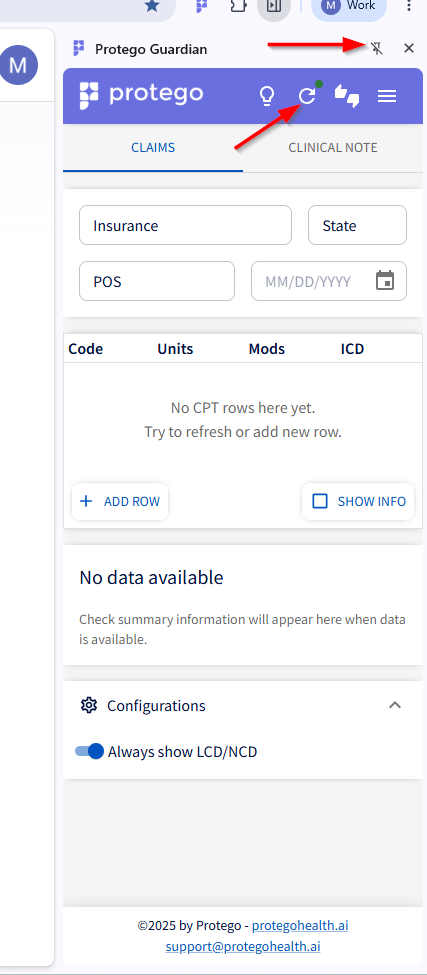
- bClick the refresh icon at the top of the panel (red arrow) so Guardian reads the current page.
- cReview the recommendations in the Claims and Clinical Note tabs.
Refresh once after changing pages. After the first time, you should not need to do it again. Continue your workflow as normal.
Quick troubleshooting
- 1Guardian is not visible. Confirm the extension is installed and pinned to the toolbar.
- 2The Login button appears again. Click LOGIN and sign in with your authorized work email.
- 3No data available. Open the correct EHR page, then click the refresh icon in Guardian.
- 4Still not working. Close the panel, reopen it from the toolbar, and refresh again.
- 5Access issue. Ask your manager or Protego Support to confirm your email is authorized.
Never include PHI in any screenshot or email you send to Protego Support. Use demo or de-identified screens only.
Need help? Quick links
Include your name, organization, browser, and the page you were viewing. No PHI.


